Video without unnecessary limitations
HDMI 2.1 FRL5 pass-through up to 40Gbps, supporting 4K120, 8K60 via DSC, HDR10+, HLG, Dolby Vision/LLDV, ALLM, and VRR signals when the source and display support them.
 OFFICIAL GUIDE
HDfury Arcana 2 combines HDMI 2.1 FRL5 video up to 40Gbps with full HDMI audio extraction. Use it for 4K120/VRR consoles, gaming PCs, 8K signals, Sonos Arc or Beam 2, modern eARC systems, older receivers, and a second video or audio output.
HDfury Arcana 2 sits between your HDMI source and display. Video goes to the TV, monitor, or projector, while full HDMI audio can be sent separately to an eARC, ARC, or HDMI audio system. The additional HDMI COPY output can mirror, scale, or operate as a full HDMI audio output.
HDMI 2.1 FRL5 pass-through up to 40Gbps, supporting 4K120, 8K60 via DSC, HDR10+, HLG, Dolby Vision/LLDV, ALLM, and VRR signals when the source and display support them.
Send audio up to Dolby Atmos/TrueHD, Dolby MAT Atmos, DTS:X, and DTS-HD Master Audio directly to a compatible eARC, ARC, or HDMI audio system, without the display limiting the source’s audio capabilities.
Use the second HDMI output as a mirror, a scaled output for a second display, Hue Sync or capture device, or as a 1080p HDMI audio stream for an older receiver.
Manage EDID, HDCP, resolution, chroma, color space, and color depth. HDfury Arcana 2 can upscale or downscale depending on the signal and displays live signal information through OLED and OSD.
HDFURY ARCANA 2 provides an adjustable eARC audio delay from 0 to 255 ms. This lets you precisely delay audio that leads the video. According to the manual, the video path itself adds only a few pixel clocks of processing.
The key specifications below are summarized for practical use. Always consult the full manual for menu options, exceptions, and signal-dependent settings.
Follow this order. It prevents multiple cables, devices, or settings from becoming possible causes at the same time.
For 4K120, 8K, or VRR, both source and display must support HDMI 2.1 FRL. Use cables between source, HDfury Arcana 2, and display that can handle the required bandwidth. The cable to an eARC soundbar only needs reliable ARC/eARC support.
Connect the HDMI output of your console, media player, PC, Blu-ray player, receiver, or HDMI switch to HDMI IN on HDfury Arcana 2.
Connect HDMI OUT on HDfury Arcana 2 to the correct HDMI input on your TV, monitor, or projector. Use the TV’s ARC/eARC input when you also want to return TV audio.
Connect eARC OUT to Sonos Arc, Beam 2, or another compatible ARC/eARC system. For a receiver with a regular HDMI input, HDMI COPY can be configured as the audio output.
Connect a second display, Hue Sync, capture card, or older receiver here. Then select the appropriate mode in the menu: mirror/pass-through, downscale, or full HDMI audio.
Power on the display and audio system first, then the source. Check the OLED to confirm that input, resolution, frame rate, HDR/VRR, and audio are detected correctly.
Start with the default settings. Change EDID, scaling, LLDV, HDR metadata, or CEC only when the connected equipment requires it. Record changes so you can easily revert during troubleshooting.
Two official HDfury connection diagrams for HDfury Arcana 2. Both keep 4K120, VRR and HDR intact on the way to your display while full audio goes separately to your sound system, and both leave the HDMI COPY output free for a second display, Philips Hue Sync, a capture device or an older AVR. Follow the cable routes before changing any Arcana 2 setting.

The starting point for a PS5, Xbox Series X or gaming PC. HDfury Arcana 2 passes 4K120 and VRR through to the display untouched, while full audio up to Dolby Atmos over TrueHD goes straight to the sound system.
Connect the HDMI output of your source to the Arcana 2 HDMI input and connect the Arcana 2 HDMI output to any projector, monitor or display. Connect the Arcana 2 eARC output to Sonos Arc or another eARC sound system.
The second output, HDMI COPY, is free for other equipment. Set it to mirror the main signal, to downscale VRR for Philips Hue Sync, a capture card or a lower-specification display, or to act as an audio output feeding an older AVR with a 1080p stream carrying full audio.
When your display has an ARC or eARC port, Arcana 2 can also retrieve the TV audio, including CEC volume control from the source or TV to the sound system.

For an installation where a console, streamer and disc player share one display and one sound system. The switch or receiver selects; HDfury Arcana 2 keeps the video at full bandwidth and routes the audio separately.
Connect all sources to the HDMI inputs of your HDMI switch or receiver and connect its output to the Arcana 2 HDMI input. Connect the Arcana 2 HDMI output to any projector, monitor or display and the Arcana 2 eARC output to Sonos Arc or another eARC sound system.
Use HDMI COPY for a second display, Hue Sync, a capture device or an older AVR, in whichever of the four modes suits that device.
This setup also returns the ARC or eARC audio your television produces itself, with CEC volume control from the source or TV to the sound system.
Source → HDfury Arcana 2 HDMI IN. HDMI OUT → TV/projector/monitor. eARC OUT → Sonos Arc, Beam 2, or another eARC system. This sends full audio from the external source directly to the audio system.
Connect sources to a suitable HDMI 2.1 switch or receiver and connect its output to HDfury Arcana 2 HDMI IN. The switch/receiver must genuinely support the required 40Gbps, FRL, and VRR signals.
Connect HDMI OUT to the TV’s ARC/eARC port. HDfury Arcana 2 can then send both audio from the external source and ARC/eARC audio from the TV to the connected audio system.
Use HDMI COPY for a second video output, a scaled TMDS output, or a 1080p stream with full HDMI audio for an older receiver. The correct COPY mode depends on the connected device.
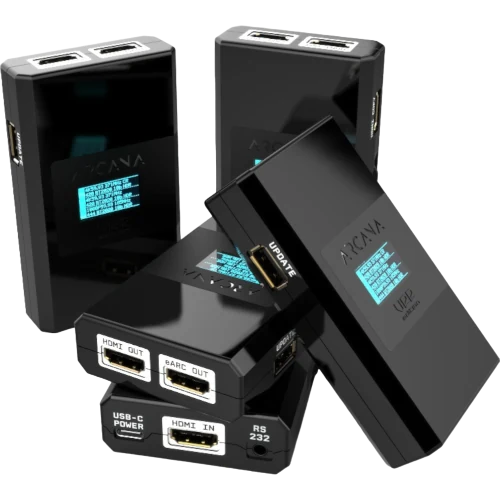
Open a photo for a larger view of the connections, enclosure, and packaging.
 HDfury Arcana 2 front with HDMI OUT and eARC OUT
 HDfury Arcana 2 rear with HDMI IN, USB-C, and RS232
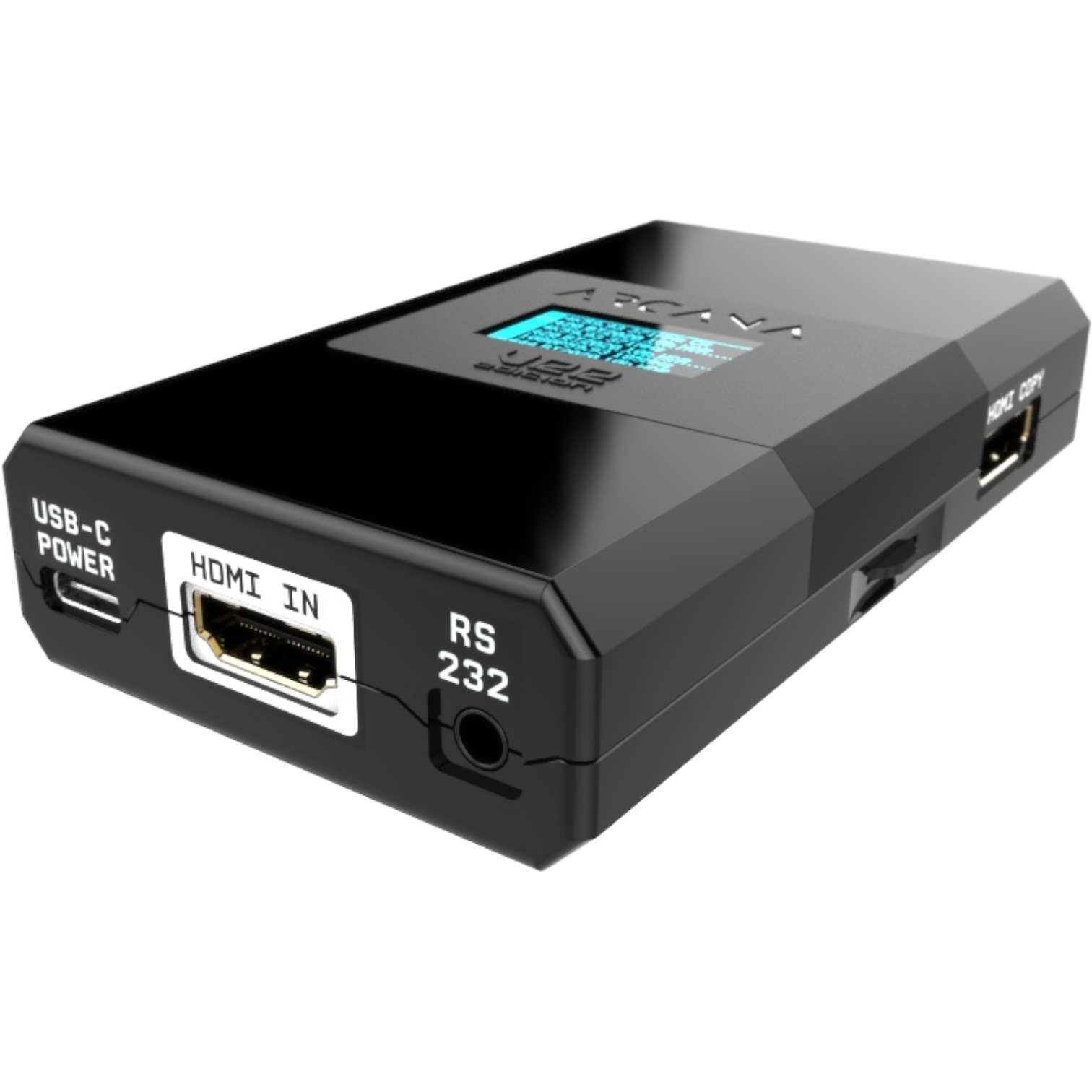 HDfury Arcana 2 angled front view at HDMI IN
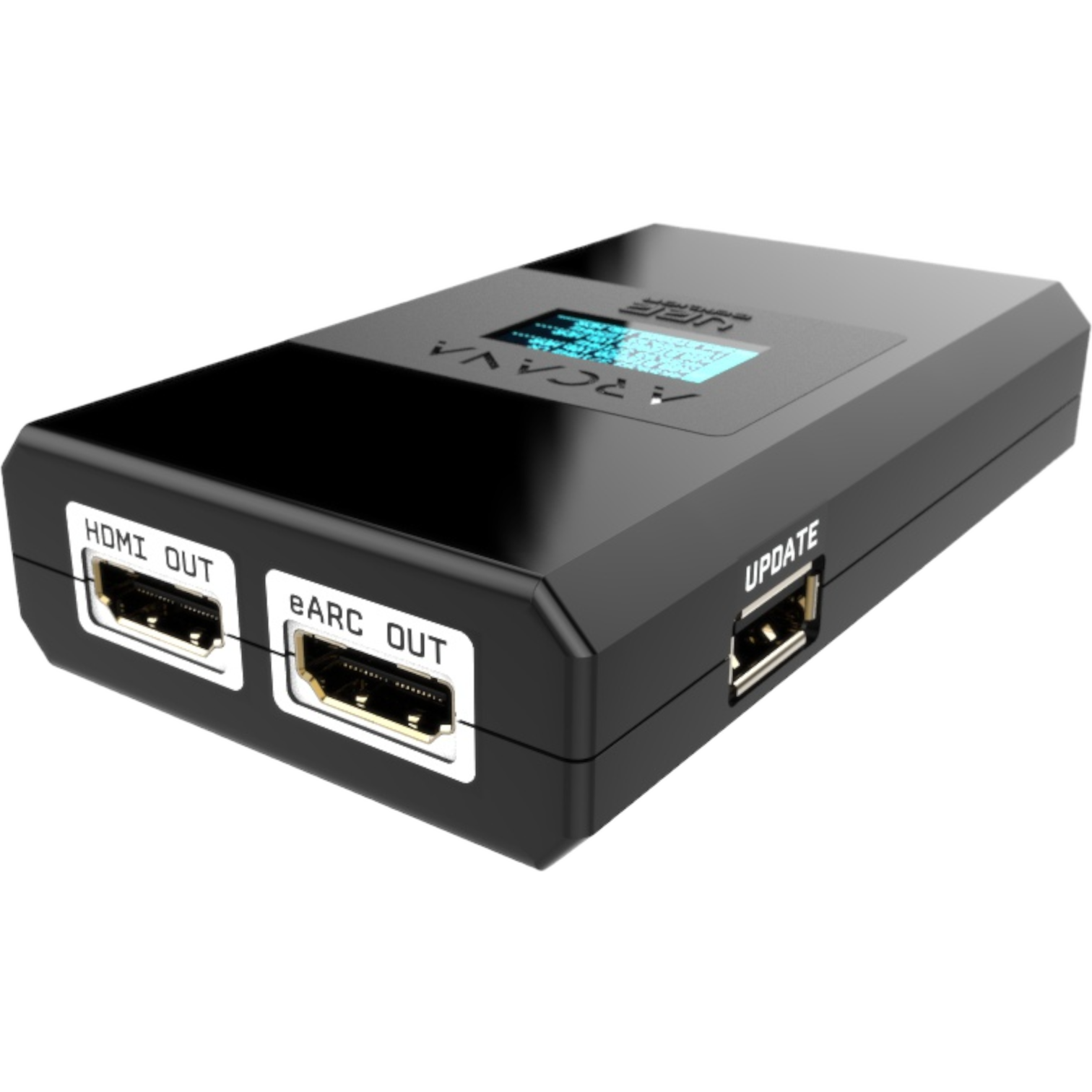 HDfury Arcana 2 angled front view at HDMI OUT and eARC OUT
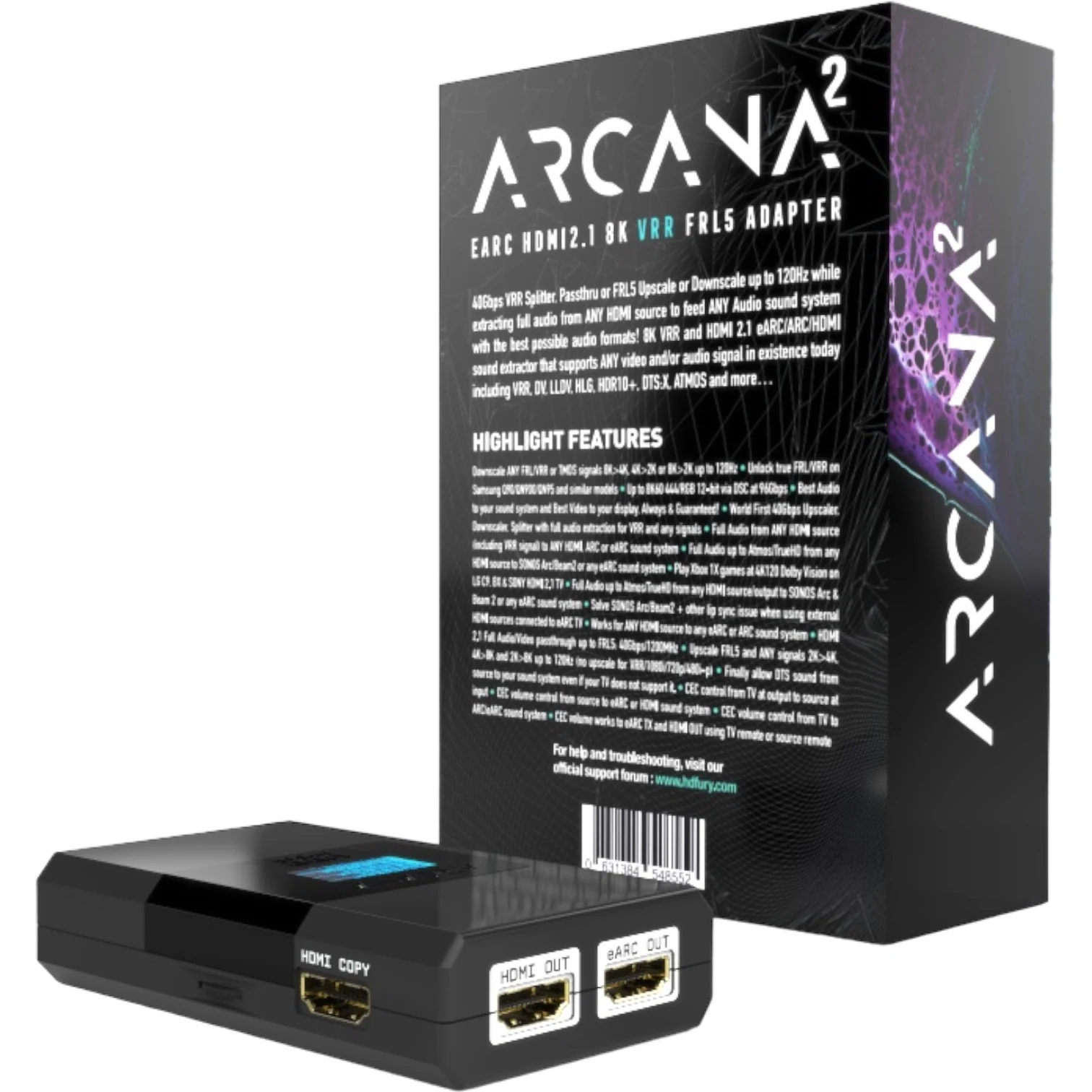 HDfury Arcana 2 with rear of packaging
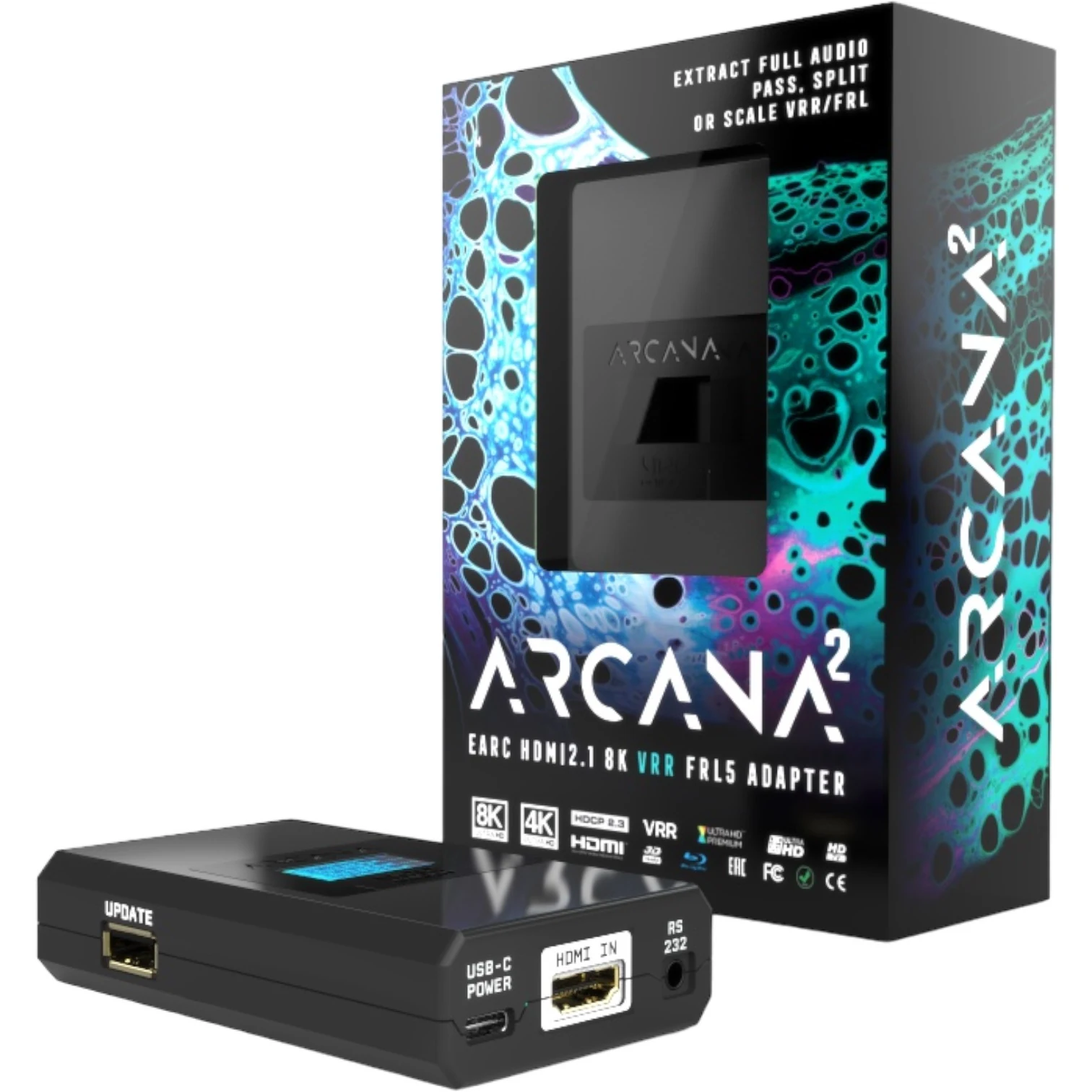 HDfury Arcana 2 with front of packagingMultiple HDfury Arcana 2 devices
The answers below clarify the most common misunderstandings before installation or purchase.
No. The TV’s ARC port does not become eARC. HDfury Arcana 2 extracts full audio directly from an external HDMI source and sends it to a compatible audio system. TV apps remain limited to what the TV can return through ARC/eARC.
Only when the source, display, cables, and any intermediate equipment support the required HDMI 2.1 FRL bandwidth and the relevant VRR format. Basic FreeSync/G-Sync outside HDMI 2.1 FRL cannot automatically pass through every intermediate device.
Signals up to 40Gbps require suitable Ultra High Speed HDMI cables between source, Arcana 2, and display. Keep copper cables short where possible; for longer runs, use a quality active or fiber-optic cable. A reliable ARC/eARC cable is sufficient for an eARC soundbar.
Yes, for external HDMI sources. Arcana 2 creates a suitable eARC audio output for the soundbar while video goes to the TV, projector, or monitor.
Yes. HDMI COPY can be configured as a full HDMI audio output with a video signal an older receiver can accept, such as 1080p. The receiver itself must support the required audio formats.
Yes. Arcana 2 supports Dolby Vision and LLDV with compatible source and display combinations and can advertise an optional LLDV data block through EDID. This does not turn an HDR10 display into a native Dolby Vision display.
HDFURY ARCANA 2 extracts audio directly from the external HDMI source, often bypassing delay caused by decoding or re-encoding in the TV. When audio leads the picture, enable delay in the eARC menu and set a value from 0 to 255 ms. Start low and increase it gradually. The device cannot move audio forward when it already arrives too late; in that case, check the source, TV, and soundbar settings. Apple TV users can also use Wireless Audio Sync.
No. Start with the default settings. Change EDID or scaling only when a device detects the wrong video or audio capabilities, a second output requires a lower resolution, or a specific LLDV/HDR configuration is needed.
Technical specifications and firmware information are checked against the official HDfury product pages. Product purchases are handled through HDfury.eu. Last technical review: 23 July 2026.