
Dolby Vision or LLDV not working on an HDfury Arcana
Both models can put Dolby Vision content on an HDR10 display, which is a genuinely useful trick. It is also the feature with the most ways to configure it slightly wrong, and the result is usually colour that looks off rather than a picture that fails outright.
Does this match your symptoms?
- SDR content looks oversaturated while Dolby Vision content looks correct.
- The picture is washed out, pink-tinted or too dark on HDR material.
- The OLED reports RGB 8-bit during Dolby Vision playback and you assume that is wrong.
Fix it in this order
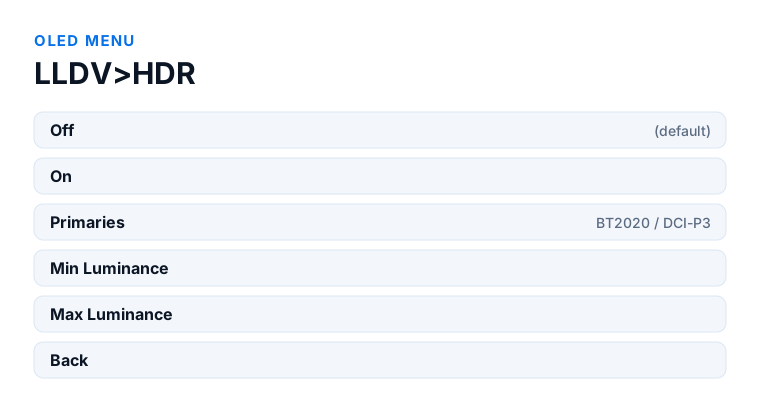
- OLED menu → LLDV>HDR → ON. Off is the factory default, so a reset or a firmware update switches it back.
- OLED menu → HDR → Auto. Use LLDV Sync only if you send nothing but LLDV; on a mixed source it makes SDR content oversaturated.
- Restart the source. Skipping this is the usual reason nothing appears to have changed.
- Set Primaries, Min Luminance and Max Luminance in the LLDV>HDR sub-menu to values your display can actually reach.
- Do not treat RGB 8-bit as a fault. Dolby Vision modes 0 and 1 travel in an 8-bit RGB container, so that is what the HDfury Arcana correctly reports.
Which model do you have?
HDfury Arcana (18Gbps). The LLDV>HDR and HDR sub-menus are identical on both models: LLDV>HDR to ON, HDR to Auto, then restart the source. The Scaler sub-menu defaults to Auto here, so it only scales when the connected display forces it.
HDfury Arcana 2 VRR (40Gbps). Same two sub-menus and the same settings. The difference is the Scaler sub-menu, which defaults to No Scaling rather than Auto. With FRL sources that matters: owners report that picking a scaler mode matching the display's maximum capability, rather than leaving it free, is what settles LLDV chains that lose sync when the frame rate changes.
What LLDV is and why it exists
Dolby created LLDV — Low Latency Dolby Vision — for Sony Dolby Vision televisions. What HDfury does with it is send LLDV to HDR10 televisions and projectors that have no Dolby Vision support of their own.
There is a real quality argument here, not just a compatibility one. If you let an Apple TV 4K output HDR10 directly, the Apple TV converts Dolby Vision to HDR10 itself. If instead you have it send LLDV and let the HDfury Arcana present that as HDR10, the Apple TV skips its own conversion and tone maps the Dolby Vision source straight to LLDV. The manual describes the result as being able to look considerably better.
Turning it on, in the right order
Two menus are involved and both have to agree. The manual gives the sequence:
First, in the LLDV>HDR sub-menu, set it to ON. Off is the factory default, so after a reset or a firmware update it is off again. With it on, the HDfury Arcana forces LLDV support and injects HDR metadata when the content is LLDV.
Second, in the HDR sub-menu, set either LLDV Sync or HDR to Auto.
Then restart your source. This step is easy to skip and it is often why nothing appears to have changed.
Auto or LLDV Sync: this is where colours go wrong
The difference between these two options is the single most common cause of colour that looks incorrect, and the manual is precise about it.
With LLDV>HDR set to ON and HDR set to Auto, custom HDR is sent for LLDV input but not for any other input type. Colours should always be correct.
With HDR set to LLDV Sync, custom HDR is sent for every input type, including SDR. The consequence is stated plainly: SDR content will look oversaturated, while LLDV content is correct.
So the rule is straightforward. If your source sends a mix of SDR, HDR10 and LLDV depending on the content — which is what a streaming box does — leave HDR on Auto. Only set LLDV Sync if you exclusively send LLDV to the HDfury Arcana.
The behaviour with LLDV Sync in detail: on LLDV input, custom HDR is sent with MaxCLL set to the LLDV maximum luminance value. On SDR input the LLDV Sync option is ignored, HDR Auto is used instead, no custom HDR is sent and the output is SDR. On HDR input, likewise, HDR Auto is used and the output carries the original content metadata.
The data block values
The LLDV>HDR sub-menu also carries the values that go into the Dolby Vision data block: Primaries, which can be set to BT2020 or DCI-P3, and Min Luminance and Max Luminance.
These describe your display to the source. Setting them to values your display cannot actually reach produces tone mapping aimed at a screen you do not own, which is another route to colour that looks wrong without anything failing.
The manual notes that the Vertex 2, Diva and Maestro offer more advanced tweaking here, which is a fair signal that the HDfury Arcana's controls are meant to be set once and left alone.
Three things that look like faults and are not
The HDfury Arcana reports RGB 8-bit while Dolby Vision is playing. This is normal and documented. Dolby Vision modes 0 and 1 travel inside an 8-bit RGB container, so 8-bit is what the signal genuinely is. Nothing is being downgraded.
4:2:2 always shows as 12-bit. Any 4:2:2 signal is processed at 12-bit and never clipped, which is why the specification says “up to 12b” rather than naming a range.
The frame rate on the OLED is an odd number. Very few devices report their frame rate accurately. The theoretical value is 24/1.001 = 23.976023976, but there is no phase-locked loop at the source producing exactly that clock, so in practice the clock drifts continuously. HDfury chose to display the real measured rate rather than round it to what it is supposed to be. An unusual number is the device being honest.
Getting Dolby Vision through equipment that does not support it
There is a technique in the manual's Pro Tips that is worth knowing if the HDfury Arcana is not connected directly to your Dolby Vision television.
First connect the Arcana's T0 output straight to the TV input and let the Arcana boot. Then disconnect it and insert the intermediate equipment. During that first boot the Arcana sniffs the Dolby Vision string out of your television's EDID and afterwards presents it to your source — which lets Dolby Vision pass through gear in the middle that has no Dolby Vision support of its own.
If you have a display below full bandwidth
You can still view LLDV on a display that is not full 18 Gbps, as long as it supports HDR. Most Dolby Vision content is 4K24, which needs far less bandwidth than 4K60, so a display that cannot handle the maximum rate can still show the content.
Setting Match Frame Rate to ON on the source helps here, because it keeps the output at the content's native rate rather than forcing everything up.
Frequently asked
What should I do if I have an HDfury Arcana (18Gbps)?
The LLDV>HDR and HDR sub-menus are identical on both models: LLDV>HDR to ON, HDR to Auto, then restart the source. The Scaler sub-menu defaults to Auto here, so it only scales when the connected display forces it.
What should I do if I have an HDfury Arcana 2 VRR (40Gbps)?
Same two sub-menus and the same settings. The difference is the Scaler sub-menu, which defaults to No Scaling rather than Auto. With FRL sources that matters: owners report that picking a scaler mode matching the display's maximum capability, rather than leaving it free, is what settles LLDV chains that lose sync when the frame rate changes.
Why is my SDR content oversaturated?
HDR is probably set to LLDV Sync, which sends custom HDR for every input type including SDR. Set HDR to Auto unless you only ever send LLDV to the HDfury Arcana.
How do I turn LLDV on?
In the LLDV>HDR sub-menu set it to ON, then in the HDR sub-menu set LLDV Sync or HDR to Auto. Restart your source afterwards; the change often appears to do nothing until you do.
Can I view LLDV on a display that is not full 18 Gbps?
Yes, as long as it supports HDR. Most Dolby Vision content is 4K24, which needs much less bandwidth than 4K60.
Is LLDV better than letting my Apple TV output HDR10?
It can be. Sending LLDV lets the Apple TV tone map Dolby Vision directly rather than converting to HDR10 itself, and the manual describes the result as potentially much better.
Related
- EDID: what it does and when to touch it
- HDCP error, flashing image or black screen
- Full HDfury Arcana specifications
Does an HDfury Arcana or HDfury Arcana 2 solve this?
Both models carry the same LLDV>HDR and HDR sub-menus. The Vertex 2, Diva and Maestro offer more advanced tweaking.
Checked against the official HDfury Arcana and HDfury Arcana 2 manuals and against firmware 0.88 and 0.25, August 2026.